
Ollama + OpenClaw: Run Multiple AI Models Locally (Free & Offline Guide)
Today, we’ll systematically explain something many people are interested in but haven’t been able to clearly articulate online: how to deploy OpenClaw using a local model to achieve a truly 100% locally running AI assistant. The entire process is free, requires no API key, and can still function normally even when completely offline. More importantly, OpenClaw not only supports deployment but also allows for seamless switching between different large local models—whether it’s the 20B/120B GPT-OSS open-source model, or mainstream models like Qwen 3, GLM 4.7, or even Kimi, all can be used flexibly within the same environment.
Next, we’ll demonstrate local AI in practice using Ollam + OpenClaw: free, usable offline, and supports multiple model switching! It supports mainstream large models such as GPT-OSS, Qwen 3, and GLM 4.7!

Preliminary environmental preparation
1. Install Git. Open PowerShell as administrator and execute the installation command below, or you can directly download the installation package from the official website.
winget install git.git
If you encounter any errors after executing the command, you can resolve them using the commands below.
Set-ExecutionPolicy RemoteSigned -Scope CurrentUser
Set-ExecutionPolicy -Scope Process -ExecutionPolicy Bypass
2. Install the latest version of the Ollam client.
The latest version of Ollam is fully compatible with OpenClaw.
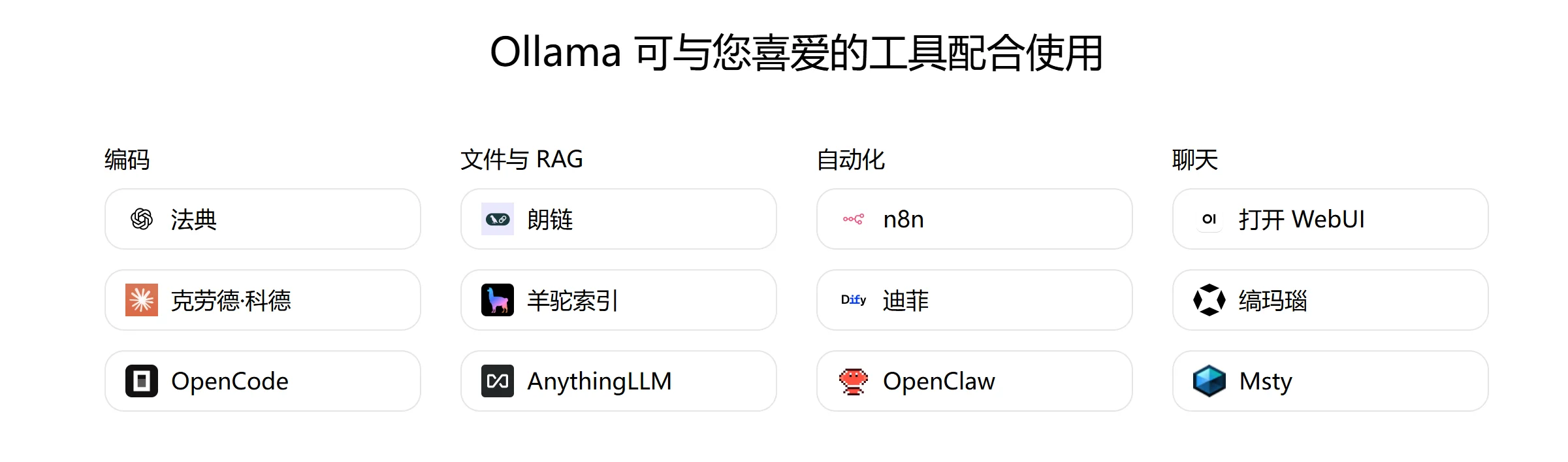
3. Officially recommended local model
Recommended Model
OpenClaw requires a larger context length to complete the task. A context length of at least 64k tokens is recommended.
The following are some models that are highly compatible with OpenClaw:
| Model | describe |
|---|---|
| qwen3-coder | Optimized for coding tasks |
| glm-4.7 | Powerful general model |
| glm-4.7-flash | Balancing performance and speed |
| gpt-oss:20b | Balancing performance and speed |
| gpt-oss:120b | Capability Enhancement |
Model download command:
ollama run gpt-oss:20b
4. Install the latest version of OpenClaw
General installation commands:
curl -fsSL https://openclaw.ai/install.sh | bash
Windows version installation command:
iwr -useb https://openclaw.ai/install.ps1 | iex
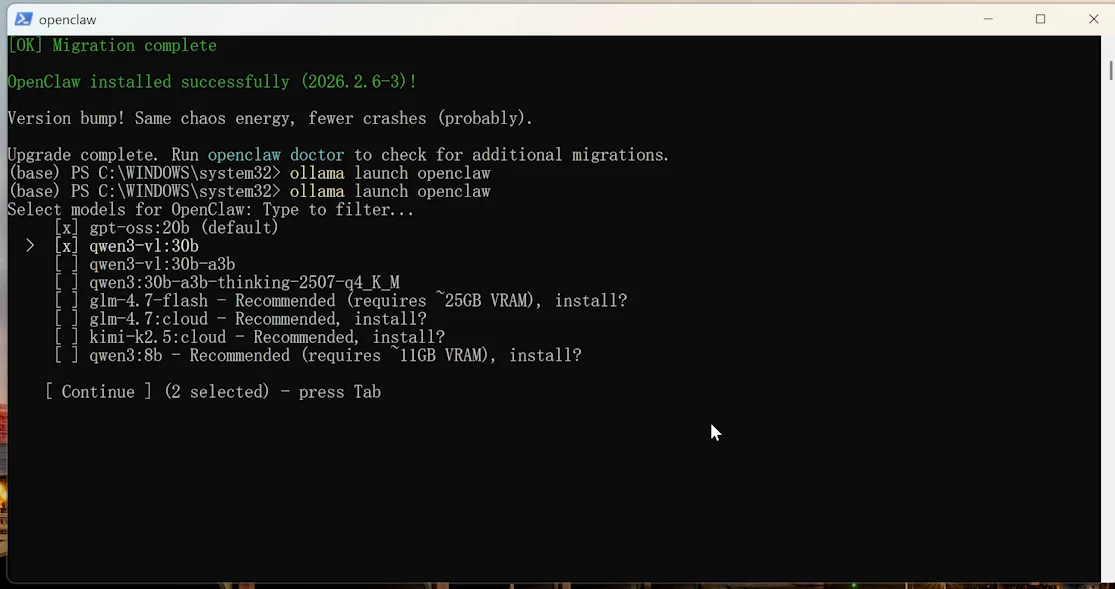
After installation, you can use Ollam to directly launch OpenClaw to connect to your local model:
ollama launch openclaw
If you want to configure OpenClaw without starting the service immediately:
ollama launch openclaw --config

If the gateway is already running, it will automatically reload.
V. Connecting to the Telegram Robot
Open your Telegram, search for @BotFather , send /newbot to create a new bot, and follow the prompts to set it up:
Give the bot a name, for example, I set it to lingduopenclaw
Set the username (must end with “bot”, e.g., lingduopenclawbot).
Finally, you will be given a string of tokens:
8123121125:AAExamegv-0FQCfhfbazmp4405V0XAJCKfk
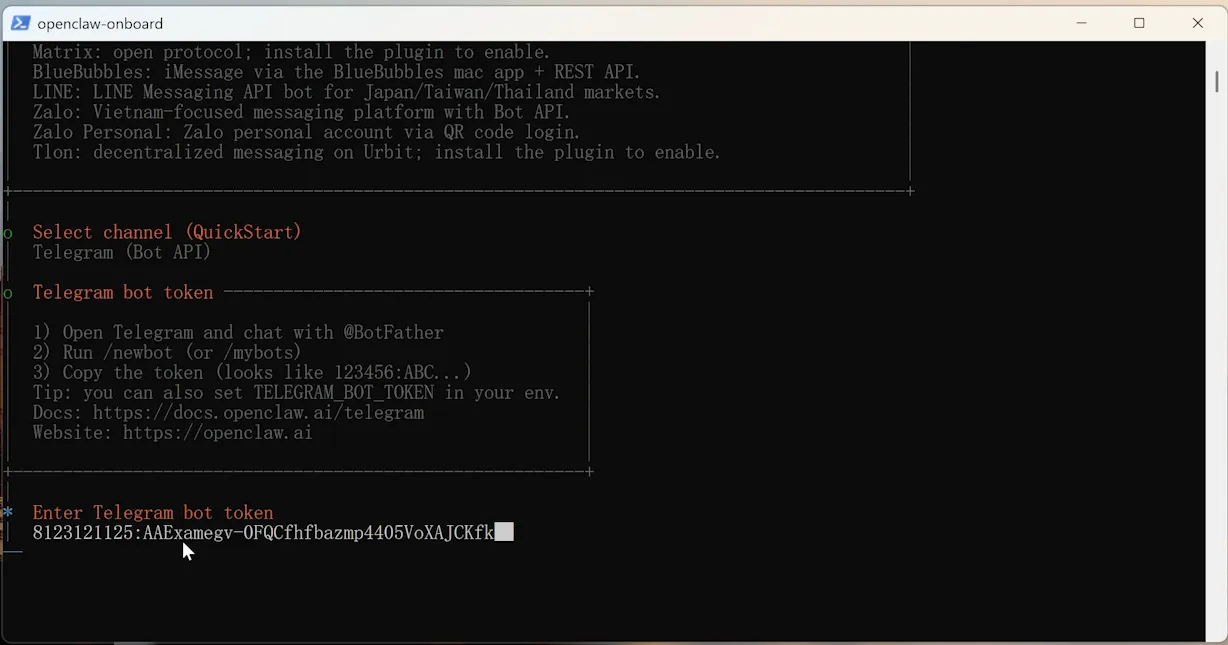
Enter the token to connect and access the bot you just created. The first time you open it, it will show that it has not been officially connected yet, but it will provide a pairing code, for example, mine is Pairing code: DLW7HQ69
Now simply open a new PowerShell window and type the pairing command in it.
OpenClaw Pairing Approves Telegram. Enter your pairing code here.
If you see this screen, it means you have successfully paired with Telegram!
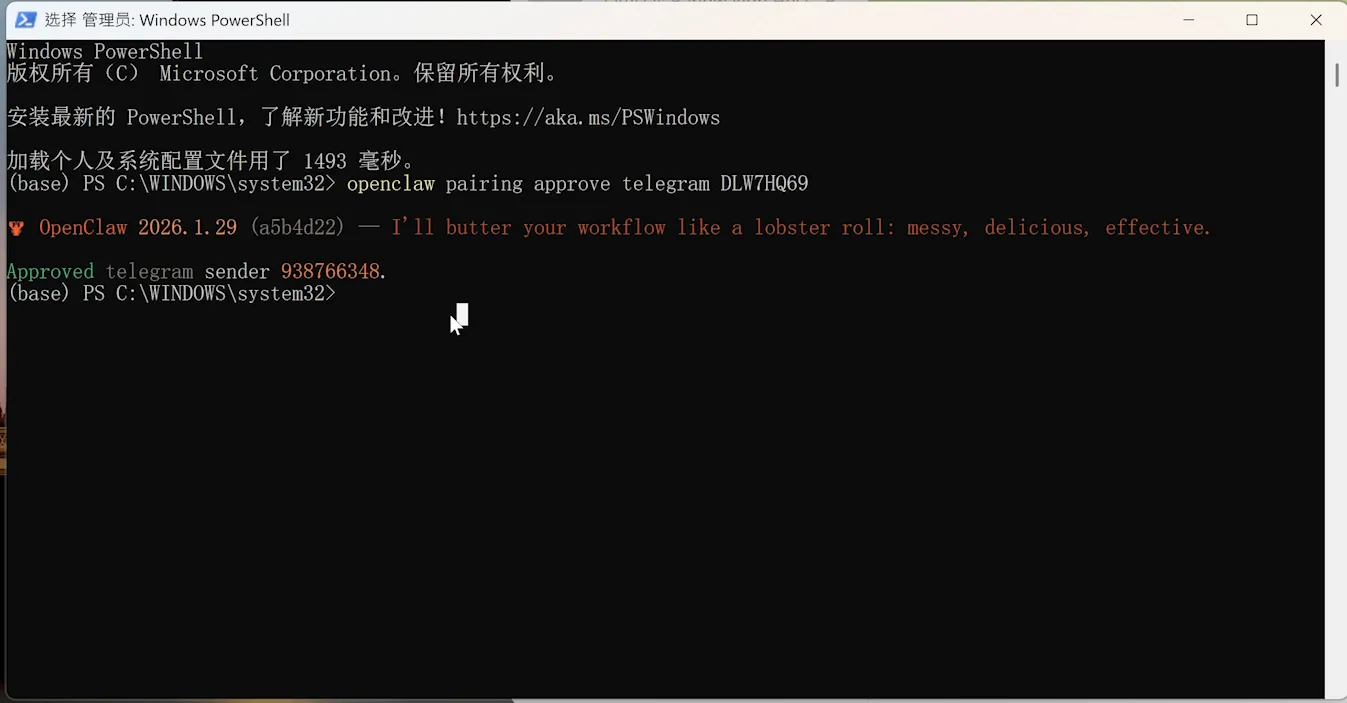
The command to start after reboot:
ollama launch openclaw
© Copyright notes
If there is no special statement, the copyright of all articles on this site belongs to AIToolGrid. Without permission, any individual, media, website, or organization may not reproduce, plagiarize, or otherwise copy and publish the content of this site. Otherwise, AIToolGrid reserves the right to pursue related legal responsibilities.
Related posts


No comments...